You Can Host OpenClaw on Azure App Service — Here's How
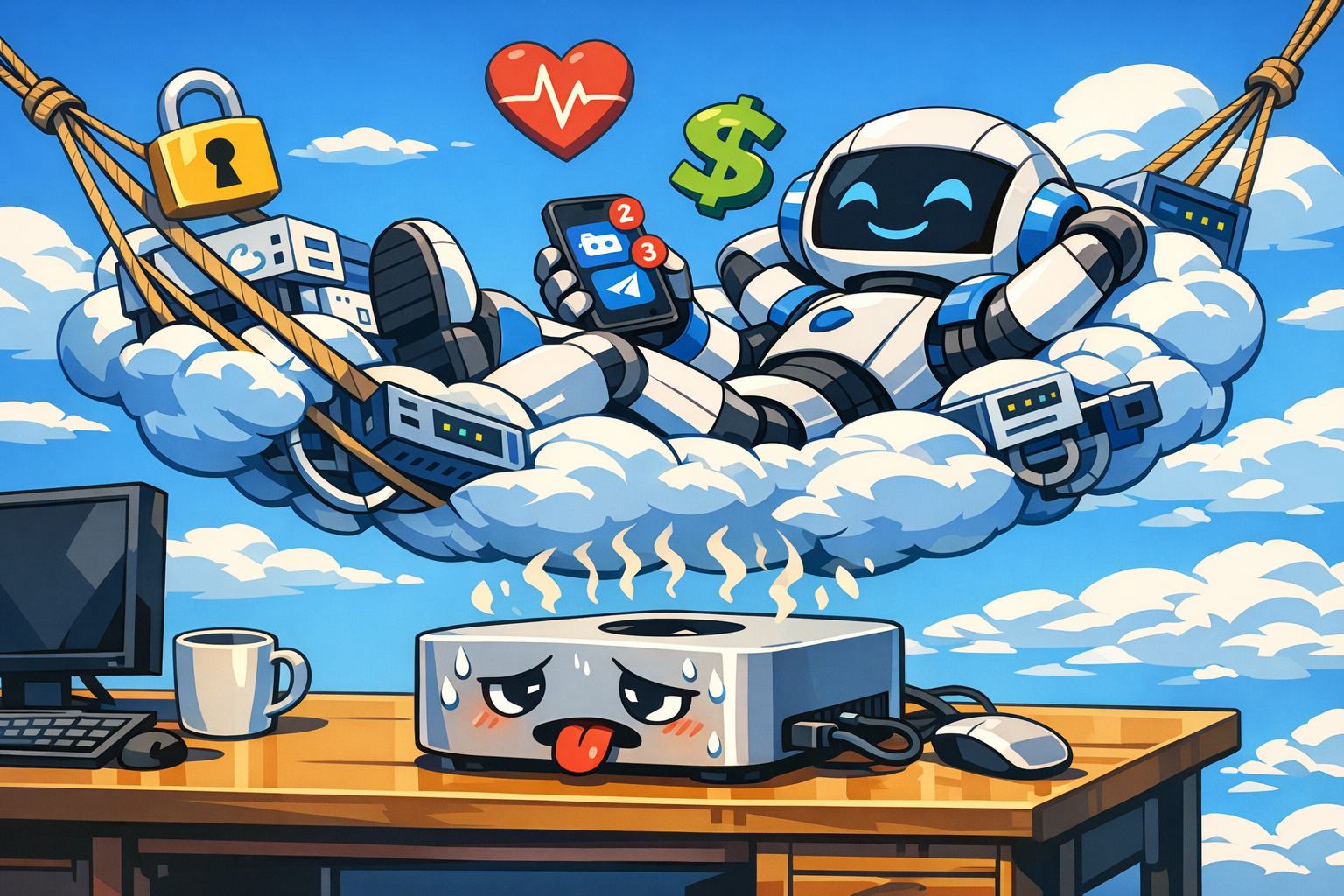
Your personal AI assistant, running 24/7 in the cloud — no laptop or Mac Mini required.
OpenClaw is an open-source personal AI assistant that runs as a persistent service, connecting to your Discord, Telegram, and other channels. It’s one of a growing wave of always-on AI tools — personal agents, coding assistants, chatbots — and it won’t be the last. As more of these tools emerge, the question of where to run them is going to come up a lot.
Most people run OpenClaw on a local machine — a lot of folks are buying Mac Minis and leaving them on 24/7. That works great, but those machines aren’t cheap (and are getting more expensive as demand increases), and you end up dealing with things like your bot going offline when the machine sleeps or restarts, flaky home internet, and your workstation pulling double duty as a server. Cloud hosting is another option worth considering — and Azure App Service makes it pretty straightforward.
Dheeraj Bandaru wrote a great post on hosting OpenClaw on Azure Container Apps, which inspired this guide. As Dheeraj put it:
“Most guides show AWS EC2 or VPS hosting. I wanted to see if Azure Container Apps could do it easier!”
This post takes a similar approach but uses Azure App Service (Web App for Containers) instead — a natural fit if you’re already familiar with App Service or prefer its operational model. Both are excellent options; pick the one that matches your experience and preferences.
Why Consider Cloud Hosting?
Running OpenClaw locally works well for a lot of people, but it does come with some trade-offs:
- Uptime — your bot stops when your computer sleeps or restarts
- Network — your home connection may be unreliable or behind NAT
- Resources — your machine is doing double duty as both your workstation and a server
- Security — one of the biggest challenges today. A lot of people self-hosting OpenClaw don’t realize they’re exposing ports, running without TLS, or leaving API keys in plaintext config files. It’s easy to get wrong, and the consequences can be serious
If any of that bugs you, cloud hosting is worth a look. Moving to Azure means OpenClaw runs 24/7 on managed infrastructure without tying up a machine at home.
Why Azure App Service?
There are several ways to run containers on Azure — Container Apps, AKS, Container Instances, and App Service. Dheeraj’s Container Apps guide is a great option, especially if you want event-driven scaling or plan to add sidecars later. App Service is another strong choice, particularly if:
- You already know App Service — same platform you use for web apps and APIs
- Always On is built in — no need to configure minimum replicas
- WebSocket support — OpenClaw’s gateway uses WebSockets for real-time communication
- SSH access — you can SSH directly into your running container from the Azure Portal or CLI
- Deployment slots — test updates in staging before swapping to production
- Azure Files integration — persistent storage that survives container restarts
- Built-in security — this is a big one. A lot of OpenClaw users struggle with securing their setup — exposed ports, no TLS, API keys in plaintext. App Service handles much of this for you out of the box: HTTPS by default, Easy Auth (Entra ID) for authentication, VNet integration, IP access restrictions, and private endpoints — no extra infrastructure or security expertise needed
- Cost predictability — a fixed monthly plan with no per-request surprises
Choosing Between App Service and Container Apps
Both services run containers well. Here’s a quick comparison to help you decide:
| Consideration | App Service | Container Apps |
|---|---|---|
| Container model | Single container | Multi-container, sidecars |
| Scaling | Auto-scale rules | KEDA event-driven |
| Always On | Built-in | Min replicas = 1 |
| In-container SSH | ✅ Yes | ❌ No |
| Deployment slots | ✅ Yes | Revisions |
| Best for | Web apps, APIs, bots | Microservices, event processing |
For a single always-on container like OpenClaw, either service works. This guide uses App Service; if you’d prefer Container Apps, check out Dheeraj’s guide.
Architecture Overview
Here’s what gets deployed:
┌───────────────────────────────────────────────────────────┐
│  Resource Group                                           │
│                                                           │
│  ┌──────────────┐    ┌────────────────────────────┐       │
│  │ Azure        │    │ App Service                │       │
│  │ Container    │───▶│ (Web App for Containers)   │       │
│  │ Registry     │    │                            │       │
│  └──────────────┘    │  OpenClaw container        │       │
│                      │  Port 18789                │       │
│                      │  WebSockets enabled        │       │
│                      │  Health checks at /health  │       │
│                      └──┬───────────┬─────────────┘       │
│                         │           │                     │
│  ┌─────────────┐   ┌────▼─────┐  ┌──▼──────────────────┐  │
│  │ Log         │   │ Azure    │  │ Azure OpenAI        │  │
│  │ Analytics   │   │ Files    │  │ (GPT-4o)            │  │
│  └─────────────┘   └──────────┘  └─────────────────────┘  │
└───────────────────────────────────────────────────────────┘

        ▲                    ▲
        │                    │
   Discord Bot          Telegram Bot
   (DMs)                (DMs)
Key design decisions:
- Azure Container Registry stores the OpenClaw Docker image (built from source)
- Managed Identity pulls images from ACR — no passwords stored in config
- Azure OpenAI provisions GPT-4o automatically — no external API keys needed
- Azure Files mounts at
/mnt/openclaw-workspacefor conversation history and agent memory - Log Analytics captures HTTP logs, console output, and platform diagnostics
- Azure Monitor alerts notify you if something goes wrong (5xx errors, health check failures, etc.)
Why Azure OpenAI?
Most OpenClaw users get their LLM by signing up for a third-party API key — Anthropic, OpenAI, OpenRouter, or similar. That works, but it means managing a separate account, billing relationship, and API key outside of your Azure environment.
This template provisions Azure OpenAI (GPT-4o) alongside the bot as part of the same azd up deployment. That gives you:
- One bill — LLM usage appears on your existing Azure invoice alongside compute, storage, and networking. No separate API account to manage.
- Data stays in Azure — your prompts and completions travel between Azure services within the Microsoft network, not to a third-party endpoint.
- Enterprise controls — Azure RBAC, Private Endpoints, content filtering, and audit logging are all available if you need them.
- No external API key signup —
azd upprovisions the model and injects the key into the App Service automatically.
If you already have an Anthropic or OpenRouter key you prefer, you can set enableAzureOpenAi to false and configure your own provider in the entrypoint — the template is flexible. But for an all-in-one Azure deployment, Azure OpenAI keeps everything under one roof.
Step-by-Step Deployment
Prerequisites
You’ll need:
- An Azure subscription
- Azure CLI and Azure Developer CLI (azd)
- A Discord bot token (and/or Telegram bot token)
Azure OpenAI (GPT-4o) is provisioned automatically — no external API key needed.
1. Clone and Configure
git clone https://github.com/seligj95/openclaw-azure-appservice.git
cd openclaw-azure-appservice

azd auth login
az login

azd init -e dev
2. Set Your Secrets
# Discord
azd env set DISCORD_BOT_TOKEN "your-discord-bot-token"
azd env set DISCORD_ALLOWED_USERS "123456789,987654321"

# Telegram (optional)
azd env set TELEGRAM_BOT_TOKEN "your-telegram-bot-token"
azd env set TELEGRAM_ALLOWED_USER_ID "your-user-id"
3. Deploy Everything
azd upThat’s it. One command provisions the infrastructure, builds the container image in ACR, deploys it to App Service, and prints the URL.
Behind the scenes, azd up runs:
azd provision— creates all Azure resources via Bicep templates (including Azure OpenAI)- Post-provision hook — builds the Docker image using
az acr build azd deploy— (no-op for infra-only, but triggers the post-deploy output hook)
4. Verify It’s Running
Note: After
azd upfinishes, give it a couple of minutes for the container to pull, start, and pass health checks before everything is fully available.
# Health check
curl https://app-xxxxx.azurewebsites.net/health

# Stream logs
az webapp log tail --name app-xxxxx --resource-group rg-openclaw-dev
Send a DM to your bot on Discord or Telegram — it should respond!
How the Container Works
The Dockerfile builds OpenClaw from source:
FROM node:22-bookworm-slim
# Clone, install deps, build
RUN git clone https://github.com/openclaw/openclaw.git ...
RUN pnpm install && pnpm build
At startup, the entrypoint.sh script:
- Reads environment variables (tokens, API keys, model config)
- Generates
~/.openclaw/openclaw.jsonwith the correct channel and gateway configuration - Starts OpenClaw in gateway mode on port 18789
This means you configure everything through App Service’s Application Settings — no need to SSH in and edit config files.
Persistent Storage with Azure Files
One concern with containerized deployments is data persistence. When a container restarts, everything in its filesystem is lost.
OpenClaw solves this with an Azure Files mount:
Storage Account → File Share (openclaw-workspace) → Mounted at /mnt/openclaw-workspaceThis share persists:
- Conversation history
- Agent memory and context
- Downloaded files and artifacts
Even if the container restarts, your bot picks up right where it left off.
Monitoring and Alerts
The deployment includes optional Azure Monitor alerts:
- HTTP 5xx errors > 10 in 5 minutes → email notification
- Health check drops below 80% → email notification
- Response time exceeds 30 seconds → warning
- Unusual volume > 500 requests per hour → informational
All logs flow to Log Analytics. Some useful KQL queries:
// What happened in the last hour?
AppServiceConsoleLogs
| where TimeGenerated > ago(1h)
| order by TimeGenerated asc

// Any errors?
AppServiceHTTPLogs
| where ScStatus >= 500
| order by TimeGenerated desc
Security
The deployment follows Azure security best practices:
- VNet integration — the App Service routes all outbound traffic through a virtual network, so calls to Azure OpenAI, Azure Files, and other backend services stay off the public internet
- Private endpoints & network ACLs — Azure Storage and Azure OpenAI use private endpoints for DNS resolution and VNet service endpoint rules with a default-deny policy, blocking all public internet access while allowing traffic from the App Service subnet
- No passwords for ACR — managed identity with AcrPull role
- HTTPS only — HTTP redirects automatically
- TLS 1.2 minimum
- FTP disabled
- Secrets as App Settings — encrypted at rest by the platform
Note on ACR: The container registry is the one resource that doesn’t have a private endpoint in this template. Private endpoints for ACR require the Premium SKU (~$50/month vs. ~$5/month for Basic), and since the registry is only accessed at build time and container pull — both authenticated — the risk is low. If you want full network isolation, upgrade ACR to Premium and add a private endpoint following the same pattern used for Storage and OpenAI.
Accessing the Control UI
OpenClaw includes a built-in web chat interface called the Control UI. To access it, append your gateway token as a query parameter:
https://<your-app>.azurewebsites.net/?token=<your-gateway-token>The gateway token is the value of the OPENCLAW_GATEWAY_TOKEN app setting. If you didn’t set one, the entrypoint script auto-generates one — check the app settings in the Azure Portal or run:
az webapp config appsettings list --name <webapp-name> --resource-group <rg-name> \
  --query "[?name=='OPENCLAW_GATEWAY_TOKEN'].value" -o tsv
Do I Need to Lock Down the App Service URL?
Short answer: probably not, but it depends on your comfort level.
What’s exposed on the public URL:
/health— returns a 200 status, no sensitive data- Control UI — a web chat interface for interacting with your bot (access requires the gateway token)
- Gateway WebSocket — requires the gateway token to authenticate; unauthenticated connections are rejected
What’s NOT exposed: Discord and Telegram traffic never flows through the App Service URL. The bot makes outbound connections to Discord/Telegram APIs using your bot tokens. Users interact via those platforms, not by hitting the App Service endpoint.
The gateway token already protects the WebSocket endpoint. The main exposure is the Control UI — anyone who finds your URL could access it.
Options (lightest to heaviest)
-
Disable the Control UI — set
controlUi.enabled: falsein the config. You’d manage everything via Discord DMs and logs. Simplest approach if you don’t need the dashboard. -
IP access restrictions — lock the App Service to your IP or VPN CIDR. Discord/Telegram still work because the bot connects outbound. The Bicep template includes an optional
allowedIpRangesparameter for this:azd env set allowedIpRanges "203.0.113.42/32" azd up -
Easy Auth (Entra ID) — adds a login page in front of the entire app. Useful if you want to share the Control UI with a team, but overkill for a personal bot.
For most personal deployments, IP restrictions are the sweet spot — one parameter, no code changes, and the Control UI stays usable.
Tip: For my own deployment, I enabled Easy Auth directly in the Azure Portal — it only takes a couple of clicks under Settings > Authentication. Even for a personal bot, it’s a nice extra layer of protection. I’d recommend doing the same.
What About Channels That Need Local Access?
OpenClaw supports many channels. Here’s what works in the cloud vs. what needs a local machine:
| Channel | Cloud-Ready? | Notes |
|---|---|---|
| Discord | ✅ Yes | Bot token connects via API |
| Telegram | ✅ Yes | Bot token connects via API |
| ✅ Yes | Uses SMTP/API | |
| Calendar | ✅ Yes | Uses API integration |
| GitHub | ✅ Yes | Uses GitHub API |
| Web browsing | ✅ Yes | Headless browser in container |
| iMessage | ❌ No | Requires macOS |
| ⚠️ Limited | Requires QR code scan, headless limitations |
For channels that need local access, you can run a second OpenClaw instance on your Mac that handles just those channels, while the cloud instance covers everything else. This gives you a hybrid setup — the cloud handles Discord, Telegram, and other API-based channels 24/7, while your local machine only needs to be on for iMessage or WhatsApp. That way, your cloud bot keeps running even when your laptop is closed, and you’re not paying for or maintaining a dedicated machine just for the channels that work fine over APIs.
Cost
Running this setup costs approximately $20–25/month on the B1 (Basic) plan (plus Azure OpenAI usage):
| Resource | Monthly |
|---|---|
| App Service (B1) | ~$13 |
| Container Registry (Basic) | ~$5 |
| Azure OpenAI (GPT-4o) | Pay-per-token |
| Storage (5 GB Standard) | ~$0.10 |
| Log Analytics | ~$2–5 |
The B1 plan gives you everything OpenClaw needs: containers, Always On, WebSockets, custom domains, and VNet integration with private endpoints. That’s less than many cloud VMs, and you get managed TLS, health checks, and monitoring included.
Need more headroom? If you want deployment slots for zero-downtime updates or need more CPU and memory, upgrade to P0v4. Just set
appServiceSkuNamein the Bicep parameters.
Updating OpenClaw
When a new version of OpenClaw is released:
# Rebuild the image (pulls latest source)
az acr build --registry <acr-name> --image openclaw:latest \
  --file src/openclaw/Dockerfile src/openclaw/

# Restart to pick up the new image
az webapp restart --name <webapp-name> --resource-group <rg-name>
Or just run azd up again.
Cleanup
To remove everything:
azd down --purge --forceWrapping Up
Running OpenClaw locally is totally fine — but if you’ve been thinking about moving it off your laptop or Mac Mini, Azure App Service is a solid option:
- One command (
azd up) to go from zero to a running bot - Always on with WebSocket support and health checks
- Persistent storage via Azure Files
- Secure by default with managed identity and HTTPS
- Observable with Log Analytics and Azure Monitor alerts
- Simple to update — rebuild the image and restart
It’s not the only way to host OpenClaw in the cloud, and it’s not required — your local setup might be working just fine. But if you want something hands-off that runs 24/7, this is a good place to start.
And while this guide uses OpenClaw as the example, the same idea applies to any always-on AI tool — whether it ships as a container, a Node.js app, a Python service, or something else entirely. App Service supports all of those. As more of these tools come out, having a go-to approach for cloud hosting will save you from dedicating hardware at home every time. Think of this as a template you can come back to.
Big thanks to Dheeraj Bandaru for the original Container Apps deployment that inspired this — if Container Apps is more your style, check that out instead.
Comments